

Introduction
A slow WordPress website can make visitors leave before they read your content or contact your business. Speed also affects how people feel about your brand. If a page takes too long to load, the business may look unprofessional even if the services are good.
The good news is that many WordPress speed issues can be improved without writing code. You can start with images, plugins, caching, hosting, themes, and basic performance checks. This guide explains the steps in a simple order so you do not randomly install more plugins and make the site heavier.
Key takeaway: The fastest WordPress site is not always the one with the most optimization plugins. It is usually the one with clean design, compressed images, fewer unnecessary scripts, good hosting, and proper caching.
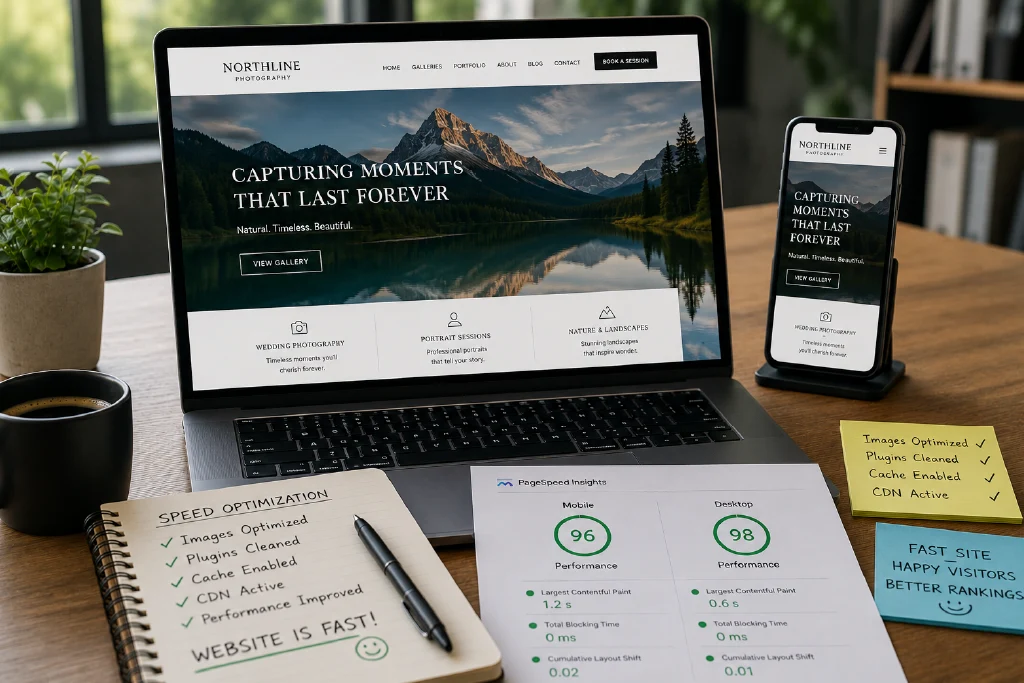
First, Test the Current Speed
Before making changes, test the website using tools such as PageSpeed Insights. This gives you a baseline. Save the results or take screenshots so you can compare before and after improvements.
Do not focus only on the score. Read the suggestions and check whether the problem is images, unused scripts, slow server response, layout shift, or too many third-party tools.
- Test the homepage and at least three important inner pages.
- Check both mobile and desktop results.
- Write down the biggest issues before installing any new plugin.
- Retest after every major change so you know what helped.
Optimize Images Before Uploading
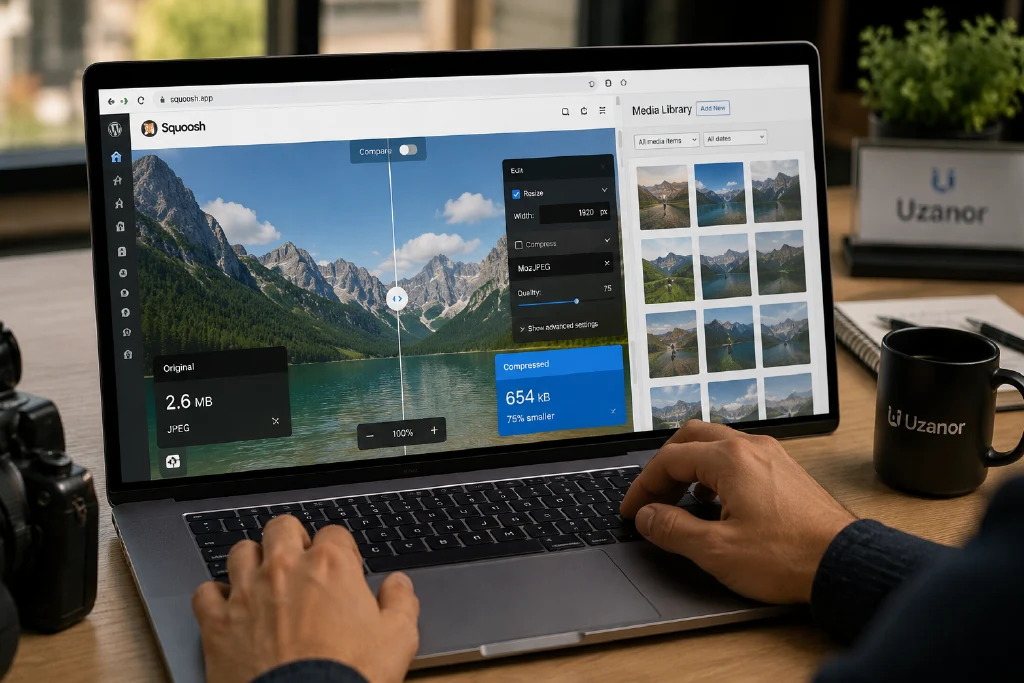
Large images are one of the most common reasons WordPress websites become slow. Many business owners upload camera-size images directly to pages. These files may look the same on the screen, but they force visitors to download much more data than needed.
Resize images to the size required by the design, compress them, and use modern formats where supported. Also add descriptive alt text for accessibility and search understanding.
| Image Task | Recommended Action |
|---|---|
| Large banner images | Resize to the actual display width instead of uploading full camera size. |
| Product or blog images | Compress before upload and use descriptive filenames. |
| Repeated icons | Use lightweight icons instead of heavy image files. |
| Alt text | Describe the image naturally, not by stuffing keywords. |
Remove Unused Plugins and Themes
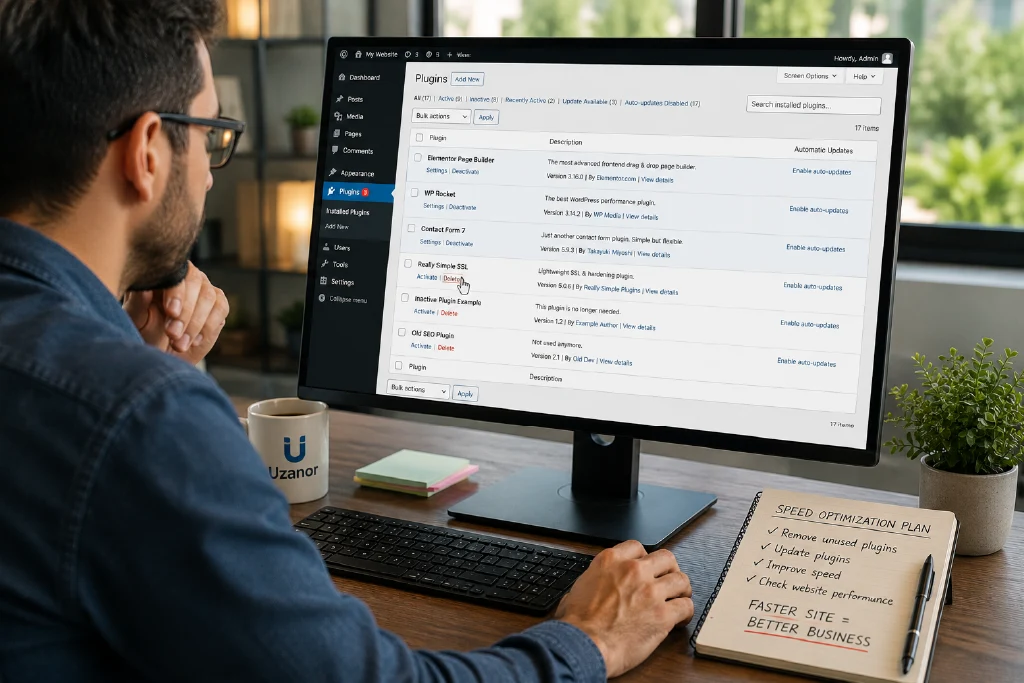
Every plugin can add extra code, database queries, CSS, or JavaScript. Some plugins are necessary, but too many plugins can slow down the website and increase security risk. Review your plugin list and remove anything you do not use.
Also delete inactive themes except one default fallback theme. Inactive themes and plugins should still be updated if they remain installed, so removing unnecessary ones reduces maintenance work.
Use Caching Carefully
Caching creates saved versions of pages or files so the server does not rebuild everything for every visitor. Many hosting providers include caching. WordPress also has caching plugins, but using multiple caching systems at the same time can cause conflicts.
Choose one clear caching approach. If your host already provides server-level caching, ask whether you still need a plugin. After enabling caching, check contact forms, cart pages, login pages, and dynamic content to make sure everything still works.
Choose a Lightweight Theme
A theme controls much of the website design. Some themes are built with many demos, sliders, animations, and visual features that are not needed for a simple business website. A lightweight theme usually loads faster and is easier to maintain.
When choosing a theme, look for mobile responsiveness, regular updates, compatibility with your required plugins, clean design, and good documentation. Do not choose a theme only because the demo looks beautiful.
Reduce Heavy Third-Party Scripts
Live chat widgets, tracking pixels, social feeds, popups, ad scripts, and external fonts can slow down a page. These tools may be useful, but they should be added with purpose. A small business website does not need every marketing script on every page.
Keep only the tools that support your business goals. If you use live chat, analytics, ads, and heatmaps together, monitor the speed impact and remove anything that does not provide value.
Simple Implementation Plan
| Step | Action |
|---|---|
| Step 1 | Test homepage and top pages using PageSpeed Insights. |
| Step 2 | Compress and resize all large images, especially banners and blog images. |
| Step 3 | Remove unused plugins, themes, demo content, and unnecessary widgets. |
| Step 4 | Enable one reliable caching system and test important pages. |
| Step 5 | Review hosting and CDN options if the website is still slow. |


