
Introduction
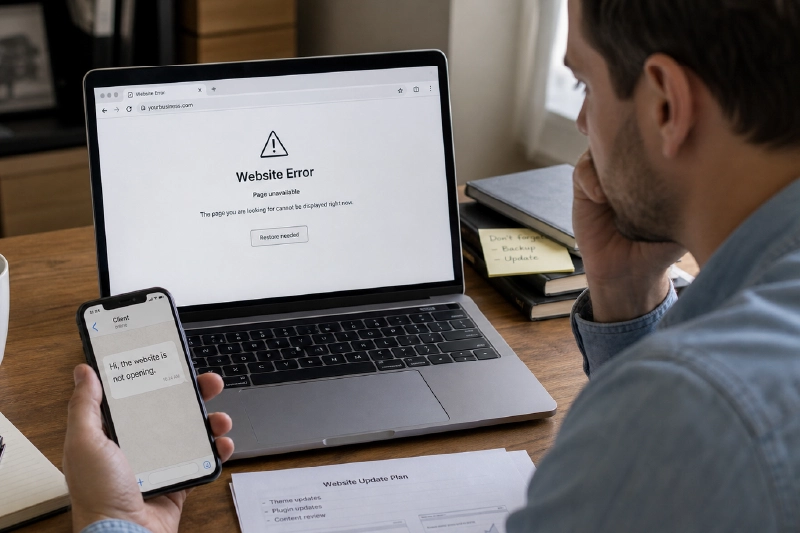
Most website owners think about backups only after something goes wrong. A plugin update breaks the site. A developer accidentally deletes a file. A hosting account gets suspended. A malware infection damages pages. Suddenly, the question becomes: “Can we restore the website?”
A backup strategy is not only for large companies. Even a small business website, blog, portfolio, or online store should have a simple recovery plan. The good news is that website backups are not difficult when you understand what needs to be saved, where to store it, and how often to test it.
What Is a Website Backup?
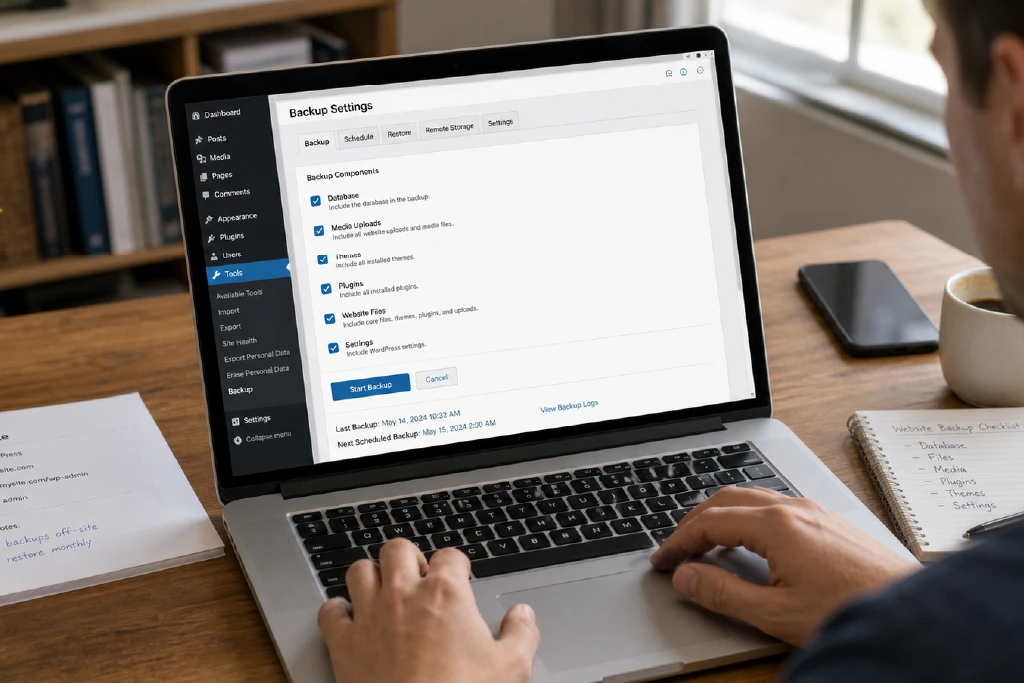
A website backup is a saved copy of the important parts of your website. For a WordPress website, this usually includes the database and files. The database stores content such as posts, pages, settings, comments, users, and product data. The files include themes, plugins, media uploads, and custom code.
If you only back up files and not the database, your recovery may be incomplete. If you only back up the database and not the media files, your pages may return without images. A useful backup should include everything needed to restore the website properly.
Why Backups Matter for Small Websites
A small website can still face big problems. Many issues are not caused by advanced hackers. They are caused by normal website work: updates, plugin conflicts, expired hosting, accidental deletion, bad imports, broken themes, and wrong server changes. Backups reduce panic because they give you a clean version to return to.
- Recover after a plugin, theme, or WordPress update breaks the site.
- Restore deleted pages, images, or files.
- Move your website to another host more safely.
- Recover from malware cleanup or server problems.
- Protect blog content, product data, and customer inquiries from permanent loss.
What Should You Back Up?
| Item | Why It Matters | Example |
|---|---|---|
| Database | Stores your website content and settings | Posts, pages, comments, products, users |
| Uploads folder | Stores your media files | Images, PDFs, videos, downloadable files |
| Themes | Controls your website design | Active theme, child theme, custom templates |
| Plugins | Adds website features | Forms, SEO tools, security, ecommerce |
| Configuration files | Controls important server or app settings | wp-config.php, .htaccess, redirects |
A Simple Backup Schedule
Your backup frequency should match how often your website changes. A business brochure website does not need the same schedule as an ecommerce store. The more often your data changes, the more often you should back it up.
- Small business website with occasional changes: weekly backups may be enough.
- Active blog with frequent posts: daily or every two to three days is better.
- WooCommerce or ecommerce store: daily backups are minimum, and real-time backups may be useful.
- Before big changes: always take a manual backup before updating themes, plugins, or server settings.

Where Should You Store Backups?
Do not keep your only backup inside the same hosting account. If the hosting account fails, gets deleted, or becomes infected, your backup may disappear with the website. A safer approach is to keep backups in more than one place.
A beginner-friendly rule is: keep one backup on the hosting side, one backup in cloud storage, and one offline or separate copy for important projects. This does not have to be complicated. The main point is to avoid depending on only one location.
- Hosting backup panel or server snapshot.
- Cloud storage such as Google Drive, Dropbox, OneDrive, or Amazon S3.
- Local computer or external drive for important monthly copies.
- Separate backup service if the website is business-critical.
Manual vs Automatic Backups
Manual backups are useful before big changes, but they are easy to forget. Automatic backups are better for routine protection because they run on a schedule. The best approach is to use both: automatic backups for regular safety and manual backups before risky updates.
For WordPress, many website owners use backup plugins or hosting backup tools. A plugin can be easier for beginners, while hosting-level backups can be more reliable for full-site recovery. The safest choice depends on your hosting quality, website size, and how quickly you need to restore the site.

Testing Backups Is Just as Important as Creating Them
A backup is only useful if it can actually be restored. Many website owners discover too late that their backups are incomplete, corrupted, too old, or missing important files. Testing does not mean breaking your live site. You can test on a staging website, subdomain, local environment, or with help from your developer.
- Check that the backup file downloads successfully.
- Confirm the backup includes both database and files.
- Restore on a staging site at least once every few months.
- Keep notes on how to restore the website step by step.
- Make sure more than one person knows where backups are stored for business websites.
Beginner Backup Strategy You Can Follow
- Enable automatic weekly or daily backups depending on website activity.
- Send at least one copy to cloud storage outside your hosting account.
- Take a manual backup before updates, redesigns, migrations, or major plugin changes.
- Keep at least three recent backup versions, not just the latest one.
- Test restoration on a staging site before you urgently need it.
- Write down who has backup access and where the recovery instructions are saved.
Common Backup Mistakes to Avoid
- Relying only on the hosting company without checking backup access.
- Backing up only files and forgetting the database.
- Storing backups in the same hosting account only.
- Never testing whether the backup can be restored.
- Keeping one backup version only. If that version is infected or broken, it may not help.
- Ignoring ecommerce order data, form entries, and customer records.
Conclusion
A website backup strategy is basic digital safety. It protects your time, content, business reputation, and customer experience. You do not need an enterprise-level system to start. Back up your database and files, store copies outside your hosting account, automate the process, and test restoration before a real emergency. A website without backups is not just unprotected; it is one mistake away from serious trouble.